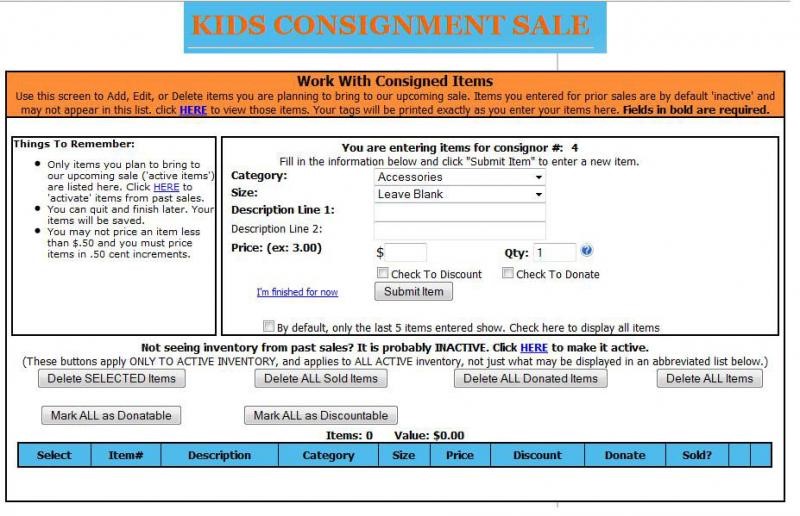
4. Select Category (all items must have a category) and Numerical Size (so it can be placed in the proper area of the sales floor if the clothes are sized "small" for example, estimate the size). Items like toys, books baby gear, etc will not need a size.
5. Enter a Description: Include the size and color so we can match up items with lost tags.
6. Enter a Price $1.00 or greater.
7. For Quantity (Qty) enter “1” unless you need more than 1 tag. However, if you have multiples of a type of item then adjust Qty to the number of tags you will need. For example: you have 3 Carters Pink T-shirts size 2T, you can enter the tag once and enter 3 for the Qty and the system will generate 3 different tags for your T-shirts.
8. Check box if want to Discount. All items marked for Discount will be 50% off the sale price on Saturday for the Half Price Sale.
9. Check box if want to Donate. All items marked for Donate will be donated to local charities after the sale closing.
10. Click Submit Item to enter the item into your inventory.
11. The item will appear below – by default only the last 5 entries will show.
12. If you would like to stop and work on entering more items later click, I'm finished for now.
How to Move Inactive Inventory to Active Inventory
Use this feature when you have unsold items from a previous sale that you would like to enter in this sale. Please remember item(s) you move into your currently active inventory must be acceptable items for the upcoming sale meaning current season items or neutral items such as bikes, toys, books, etc.
1. Sign into the Consignor Homepage (using your consignor number and password)
2. Click on Work with Consigned Inventory.
3. Click on Inactive Inventory. From this screen you can select inventory items that you have entered/brought to past sales (inactive inventory) and plan to bring to our upcoming sale. Inventory that you select here will become "active inventory" (inventory that you are planning to bring to our upcoming sale) and will appear on the "Work with Inventory" screen so you can edit it and print tags for it (if necessary)
4. Click on the box next to the item(s) you would like to sell in the upcoming sale then click Make SELECTED Inventory ACTIVE For Upcoming Sale. This action will move that item or items into your active inventory.
Printing Instructions
1. Login in on your Consignor Homepage.
2. Click on Work with Consigned Inventory.
3. On the Consignor Inventory Menu, click “Print Tags.”
4. Click (Print All Tags) if you are ready to print all tags at once.
5. Or click (Print Selected Tags).
6. If you select Print Selected Tags – check box of the tags you would like to print.
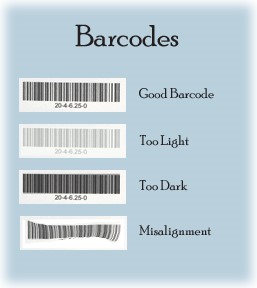
Example of Good and Bad Barcodes